How to Join Instagram or Messenger Video Calls Without Showing Your Real Face
Video calls have become a common way to connect with friends, family, and colleagues. However, there are moments when you may not feel comfortable appearing on camera. Whether you are not prepared for a video call or simply prefer more privacy, there is now a creative solution.
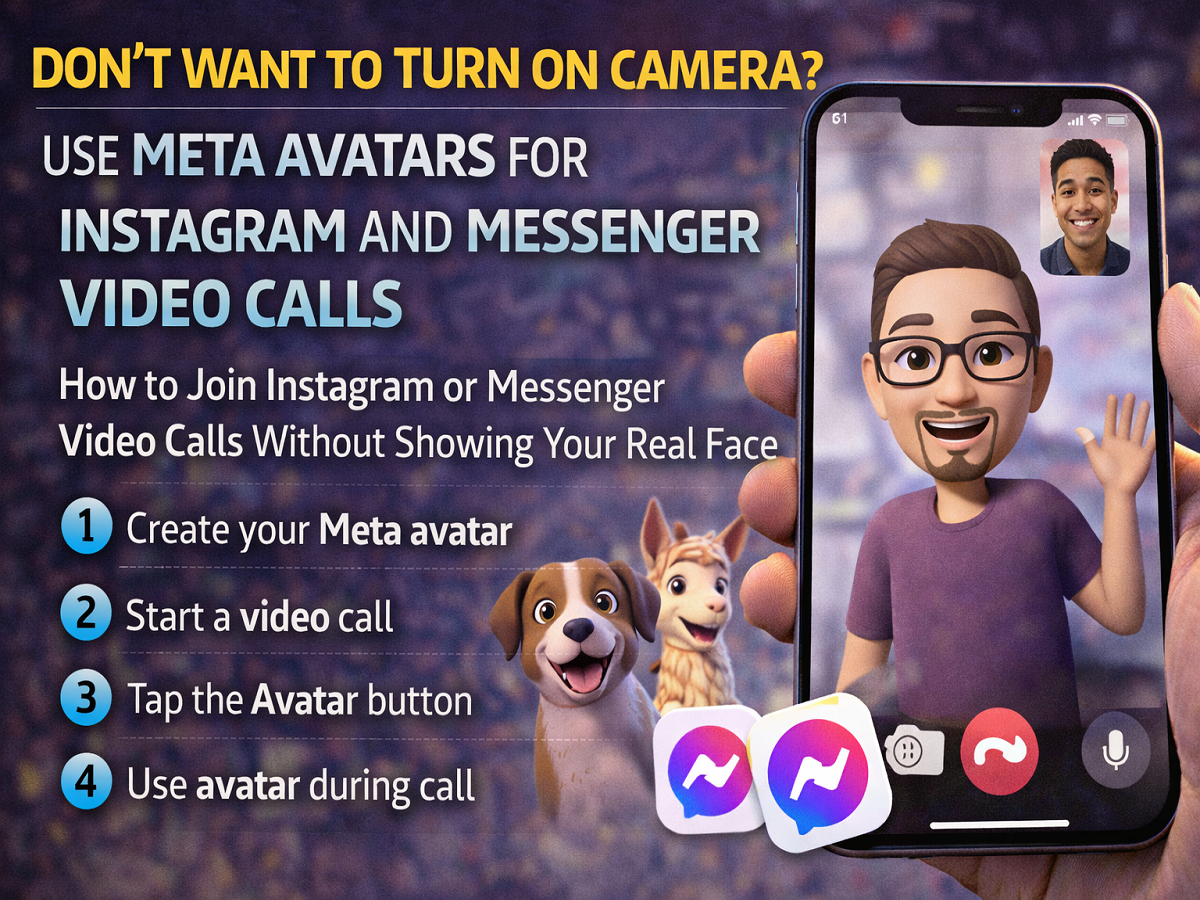
Meta Platforms has introduced a feature that allows users to participate in video calls using digital avatars instead of showing their real faces. This feature works on both Instagram and Messenger.
With Meta avatars, users can stay present in conversations while maintaining privacy. The animated avatar reflects facial expressions and movements, making interactions feel more natural even when the camera is not on.
Here is everything you need to know about using avatars during video calls.
What Are Meta Avatars?
Meta avatars are customisable animated characters that represent users across Meta platforms. These avatars can mimic certain facial expressions and gestures during calls, creating a more engaging virtual presence.
Instead of appearing on camera, your avatar will appear on the screen during the call. This can be useful in situations such as:
- When you are not ready to appear on camera
- When you want more privacy during calls
- When you are in a low-light environment
- When you simply prefer a fun or creative appearance
The feature is available for both Android and iOS devices.
Other Uses of Meta Avatars
Apart from video calls, Meta avatars can also be used across different parts of Meta’s social media ecosystem.
Users can share avatar-based content such as:
- Animated avatar stickers in chats
- Avatar reactions in comments
- Avatar appearances in Instagram Stories and Reels
- Avatar messages in Messenger conversations
Meta has also added fun character options and animated styles that make avatars more expressive and entertaining.
Requirements Before Using Avatars
Before using avatars during calls, make sure you have the following:
- The latest version of Instagram or Messenger installed
- A stable internet connection
- A created Meta avatar
Once these requirements are met, you can start using avatars during calls.
How to Create a Meta Avatar
If you have not created your avatar yet, follow these steps.
Step 1: Open Your Profile
Open Instagram or Messenger and tap on your profile picture.
Step 2: Select the Avatar Option
In the profile settings, choose Avatars.
Step 3: Create Your Avatar
Tap Create Avatar and customise features such as:
- Face shape
- Hairstyle
- Skin tone
- Outfit and accessories
Step 4: Save Your Avatar
Once you finish customising your avatar, tap Save.
Your digital character is now ready to use.
How to Use an Avatar During a Video Call
After creating your avatar, you can use it during calls.
Step 1: Start a Video Call
Begin a video call with a friend on Instagram or Messenger.
Step 2: Tap the Avatar Button
Once the call connects, locate the Avatar icon at the bottom of the screen.
Step 3: Activate the Avatar
Tap the icon to enable your avatar. It will appear on the screen in place of your live camera feed.
Your animated avatar will now represent you throughout the call.
Fun Avatar Customisation Options
Meta also allows users to experiment with different avatar styles and skins. Some options include playful character themes such as animals or creative animated appearances.
These features make conversations more engaging and add a fun element to online interactions.
Meta’s avatar feature offers a practical and creative alternative for video calls when users are not comfortable turning on their camera. By using avatars on Instagram and Messenger, people can still participate in conversations while maintaining privacy.
Whether you want a quick solution when you are not camera-ready or simply want to try a fun new feature, Meta avatars provide a flexible way to stay connected during video calls.